
How to validate a product idea before you spend on ads
TrendMetric Research8 min read
Spending to “see if it works” is expensive when the catalog already had a stored picture. Most operators skip that picture: they buy a sample, shoot a hook, and learn on Meta that the keyword was crowded or the country they sell barely searches it. Validating a product idea in TrendMetric means reading demand, crowding, and a modeled range on a SKU that already exists in the catalog — then deciding whether ads are a test or a skip.
This is not a ROAS model and not a checkout forecast. VolumeScore™ is a research rank. Estimated revenue is modeled. Forecast is a demand range from stored history, and it is Pro. If the SKU is not on Trending Products, you cannot validate it here.
Use this article as the go / no-go pass after a shortlist. If you still need candidates, start with how to find trending ecommerce products. If you need the product-board mechanics, read Trending Products is catalog research. Media buyers who care about category size first should run the market check before they open a single SKU.
Confirm the SKU is even in the catalog
Open Trending Products and search the name you actually intend to advertise — not the TikTok caption, not the supplier SKU code. The workspace only scores products that already exist in the live catalog and meet catalog rules, including a usable image. Spy on Store and Search Product outside the catalog are Coming Soon. Pasting a Shopify URL will not invent a row.
That constraint is the method. You validate stored history, then you decide what to test with your own offer, creative, and suppliers. Product researchers use it as discipline. Dropshippers lose money when they treat a missing row as “TrendMetric just has not scraped it yet.” Missing means you cannot rank, forecast, or track it here.
Read the score as a rank, not a green light
How to read VolumeScore™ is the longer version. For validation, keep one rule: the score sorts the board. The columns beside it explain the bet. A high score with High competition usually means demand already exists and the field is crowded. A mid score with Rising trend is a different bet — stored history is up, not that ads will stay cheap.
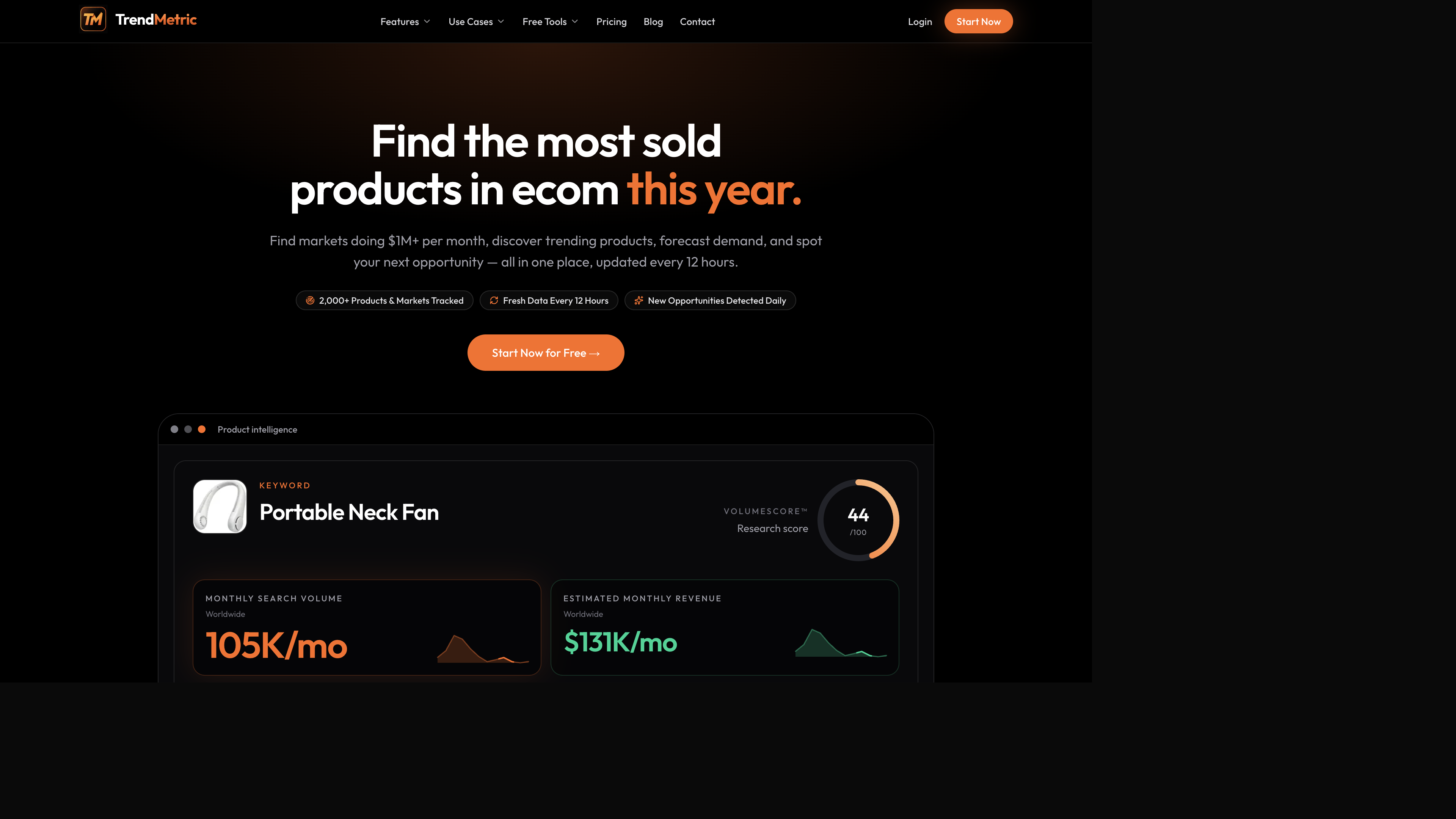
Take a portable neck-fan style SKU. On the product intelligence card you will see a VolumeScore™ ring, monthly Search Volume, and modeled Estimated Revenue for the selected geography. Write all three in the note. Then open 30D and 90D. If 30D is up and 90D is flat, you are looking at a short window. That is a Test or Watch, not a reason to buy a container.
A pickleball-adjacent row on the same board can look “hot” in a creator feed and still fail this pass. Read Search Volume in the country you sell. Read competition. If the country cell is thin or Unavailable after the request finishes, do not brief a spend plan off a Worldwide number and hope the local auction cooperates.
What to write in the validation note
- SKU name and catalog category — not the ad hook you have not shot yet.
- Geography: the country of the ad account, with Worldwide only as context (country vs Worldwide).
- VolumeScore™ plus Search Volume, 30D, 90D, trend, and competition on one line.
- Parent market vs the SKU’s own row — never add estimated revenue twice (estimated revenue and MarketScore™).
- Decision: Test, Watch, or Skip — and the one reason the other two lost.
Size the market without double-counting TAM
Open Trending Markets for the category around the SKU. MarketScore™ is a 0–100 rank on the market, not on the product. Estimated revenue is a modeled monthly range for comparison. Neither figure is observed checkout.
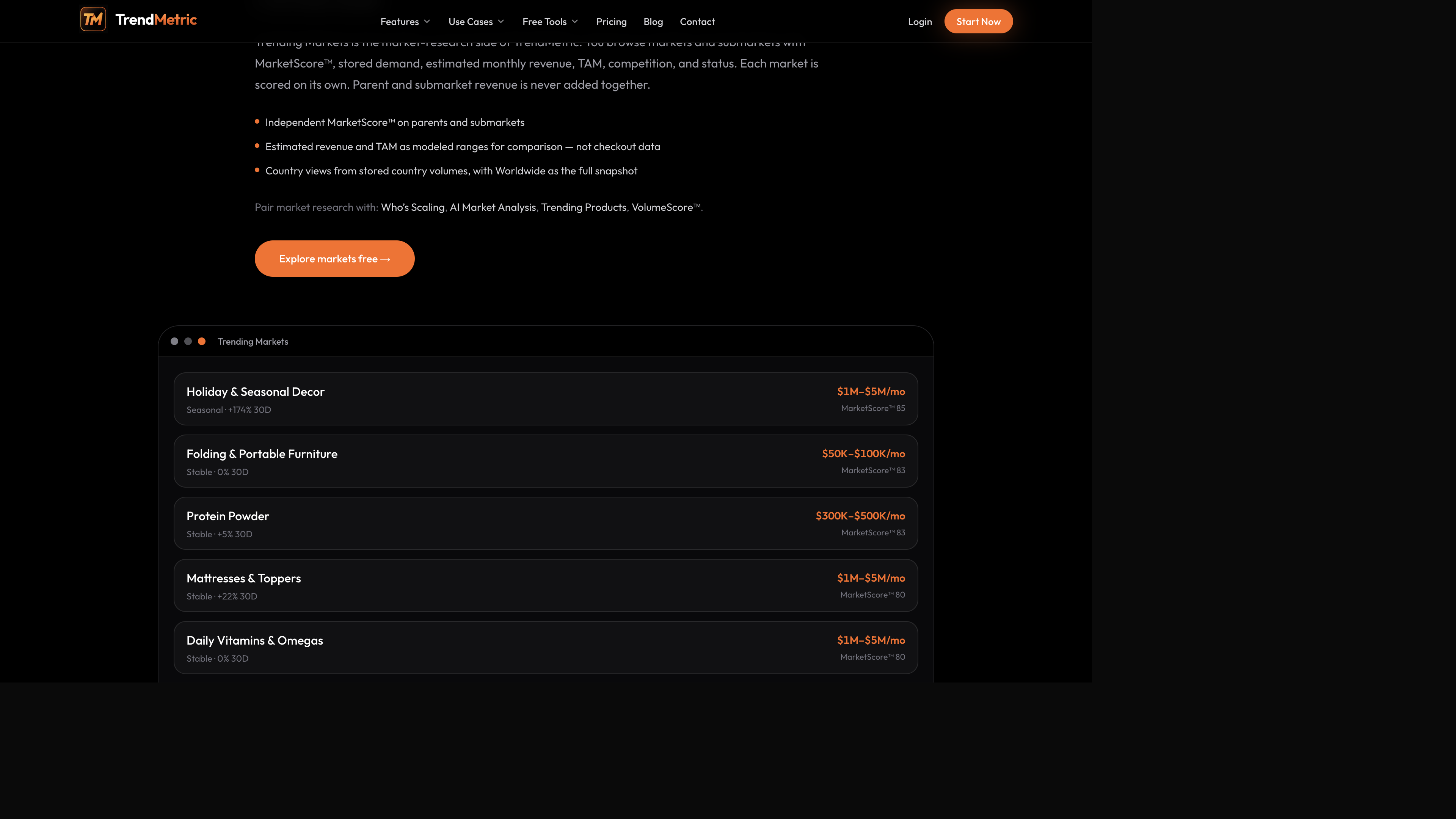
Protein powder is a useful example of a Stable, high-revenue parent on the market board. A shaker, a scoop, or another accessory in that aisle is not extra TAM you can add to the parent. Compare the accessory’s own Search Volume and competition. If the child is thin and High competition, the parent’s size does not rescue the SKU.
Holiday decor and folding furniture tell a different story on the same board: one is Seasonal with a large modeled range, the other can look smaller and still be a cleaner test if crowding is lower. Do not add those ranges together. Do not add a submarket to its parent. Compare siblings, then inspect the parent when you need the wider aisle.
Use the country of the ad account
Country switching is stored country volumes, not a live Ads API call on every click. Set the country you will actually spend in before you write the go / no-go. Large countries often look bigger because stored demand is larger, not because TrendMetric is boosting them.
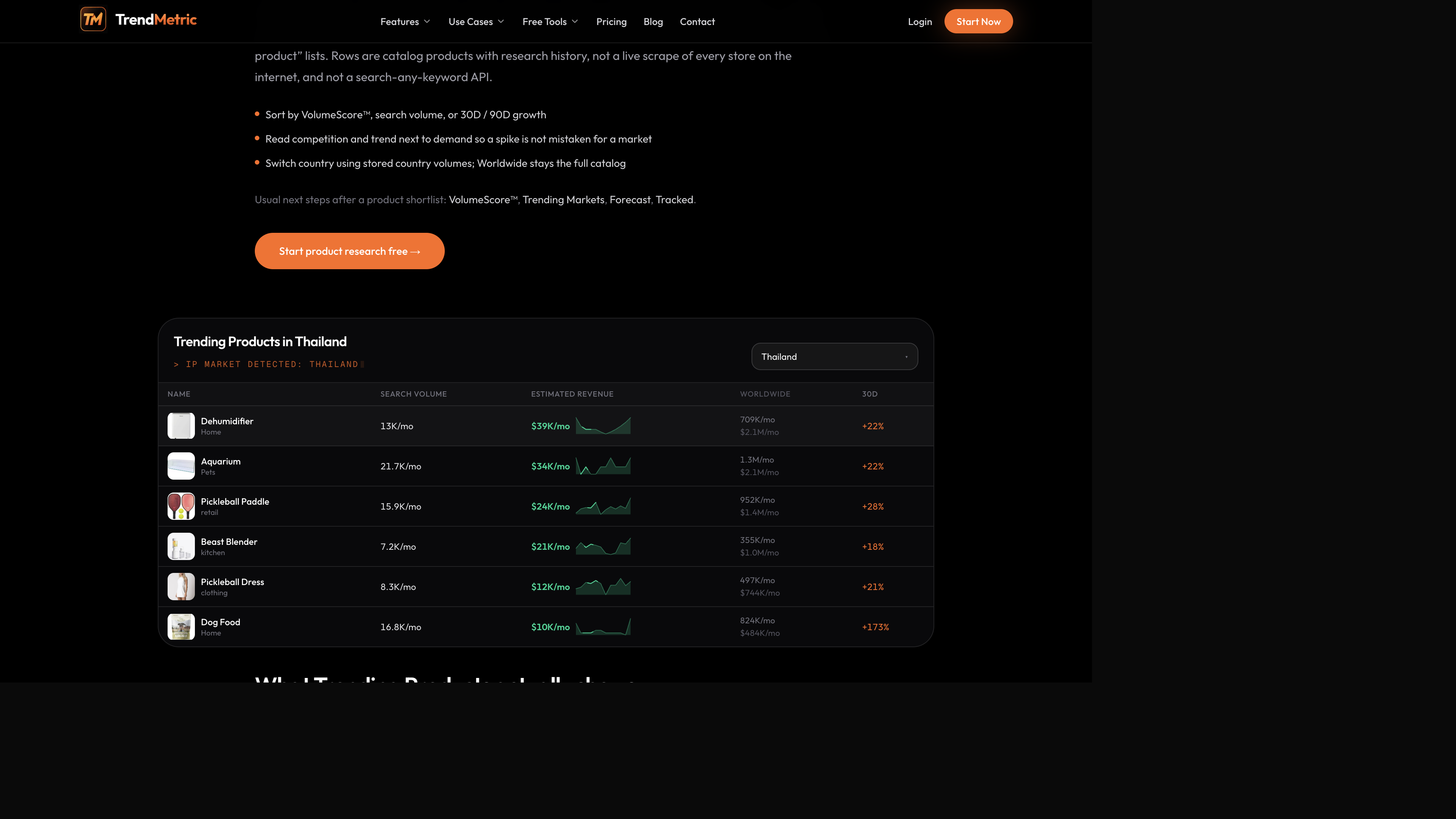
On the product board, a Thailand view keeps Search Volume and Estimated Revenue on the local slice and leaves Worldwide on the row so you can see both. A dehumidifier or aquarium row can look meaningful Worldwide and thin in the country you ship. That is a Skip for a local account, not a “Worldwide is huge so we expand later” note unless expansion is the brief.
The validation pass you can run in one sitting
Use this when you have a candidate, not a hundred-row spreadsheet. The output is Test, Watch, or Skip — plus a project country so later notes do not mix geographies.
- Confirm the SKU exists on Trending Products. If it does not, stop. You cannot validate a missing row.
- Read VolumeScore™ next to Search Volume, competition, trend, and 30D / 90D. Write the line. Do not stop at the ring.
- Switch to the country of the ad account. If a cell says Unavailable, the country request finished with no stored figure — not that the row is still loading.
- Open Trending Markets for the category. Compare the parent and the SKU independently. Do not add estimated revenue.
- If you have Pro, Forecast a short horizon for a Scale / Test / Watch / Caution stance. Limited confidence means the series is thin — do not spend to invent certainty.
- If the niche still looks large enough and you need the growth-and-revenue bar, open Who’s Scaling. It is a Pro cut of the same catalog, not a second universe of data.
- Decide Test, Watch, or Skip. Track the product the day you decide to watch it. 7D and 30D are not retroactive. Track Forecast is not live.
Forecast a range, then Track — do not skip the stance
Forecast reads stored monthly history. It does not invent missing months. It does not draw a pretty curve from 30D and 90D percentages. Scale means stored history still looks supportive on that horizon — not that ads will be cheap. Test means the range is usable but you should not concentrate spend. Watch means keep the SKU on a list. Caution means the stored picture does not support spending to learn.
Run the forecast in the country you actually sell. A Worldwide range and a US range are different views. Do not average them. Brand owners should match the forecast country to the project country so the brief stays honest.
Then Track. Snapshots for 7D and 30D start from the save date. There is no retroactive baseline from before you cared. Optional Tracked emails are opt-in in Settings on a paid plan. Forecast, Who’s Scaling, and AI Market Analysis are Pro — see which plan you need.
What validation will not do (on purpose)
- It will not predict ROAS, CPA, or whether Meta will approve the ad.
- It will not tell you landed cost, MOQ, or whether the supplier can ship.
- It will not paste a store URL and return a spy report. Spy on Store is Coming Soon.
- It will not search an arbitrary keyword outside the catalog.
- It will not treat a high VolumeScore™ or a large parent market as permission to scale inventory.
If you already have a test budget in mind, the public ROI calculator and ROAS break-even calculator are arithmetic — they do not read TrendMetric scores. Use them after the catalog pass, not instead of it. Pricing for the workspace is on pricing.
How to choose Test vs Watch vs Skip
Test when the SKU is in the catalog, the country you sell has a stored Search Volume you would actually staff, 90D does not contradict a loud 30D, and competition is a crowding you can live with. You are still buying a learning budget, not a forecasted payout.
Watch when the ring looks fine but the longer window is thin, the country cell is usable but not staffable, or the parent market looks large while the SKU itself is a crowded accessory. Track it. Do not spend to invent a clearer series.
Skip when the row is missing, the country request finished Unavailable, Caution is the Forecast stance on a thin series, or you only liked the parent’s modeled range. A protein-powder aisle does not rescue a thin accessory. A Worldwide neck-fan tile does not rescue a country you do not sell.
After Test: keep the same geography
A Test decision is not a blank check. Staff one country, one offer, and a creative set you can actually judge. If the catalog later cools, you will see it on the tracked row from the day you saved it — not from a screenshot you forgot to date.
If three SKUs survive this pass, you are done for the sitting. Do not reopen Worldwide and add it to the country note. Do not reopen the parent market and add it to the SKU’s estimated revenue. The honest brief is one geography, one row, one decision. Create a free account and run that brief on the live catalog.
Related articles
FAQ
- Can TrendMetric validate a TikTok SKU that is not in the catalog?
- No. If the product is missing from Trending Products, you cannot score, forecast, or track it here. Search Product outside the catalog is Coming Soon.
- Does a high VolumeScore™ mean I should buy ads?
- No. VolumeScore™ is a 0–100 catalog rank. Pair it with Search Volume, competition, and trend. High score plus High competition usually means demand already exists and the field is crowded — useful, not a green light.
- Is estimated revenue a sales or ROAS forecast?
- No. Estimated revenue is a modeled monthly range for comparison. It is not Shopify checkout, ad spend, or a contribution-margin model. Do not brief a test budget as if the range will hit.
- Should I validate on Worldwide or the country I sell?
- Use the country of the ad account for the go / no-go. Worldwide is the full catalog view. Adding a country figure on top of Worldwide double-counts interest.
- Which plan do I need to validate a product idea?
- Starter opens the live Trending Products and Trending Markets catalogs. Forecast, Who’s Scaling, and AI Market Analysis are Pro. Unpaid access is a limited preview.