Track starts the clock: 7D and 30D are not retroactive
TrendMetric Research7 min read
If a tool shows 30D change from before you cared, you are reading someone else’s clock. Tracked is TrendMetric’s personal watch list for catalog products and markets. When you save a row, the workspace stores the subject, the country you were on, and the time. Snapshots for 7D and 30D change start from that date. There is no retroactive baseline from before you tracked.
Until enough snapshots exist, 7D or 30D stays incomplete on purpose. The row says so instead of inventing a percentage. That makes retainer reporting and personal watch lists easier to defend: you can say “we started watching on this date” instead of backfilling a baseline you never recorded.
This article is the follow-up list, not a second catalog. It is not store-level spying, and Track Forecast is not live. If you still need the shortlist, start with how to validate a product idea. If you want a future demand range, that is Forecast — a different clock.
What you get the day you save
You get a list you can open again: the catalog product or market, the country you were viewing, VolumeScore™ or MarketScore™ from the live board, and a Tracked-since date. You do not get a backfilled year of personal history. Last update is when the catalog last refreshed the row you are watching — the product catalog refreshes about every 12 hours — not a continuous crawl of every store.
Catalog products and markets are live. Store tracking is reserved in the workspace but is not a research surface yet; Spy on Store remains Coming Soon. Forecast moves cannot be tracked as their own alert product.
A practical example: you decide on Tuesday, not last month
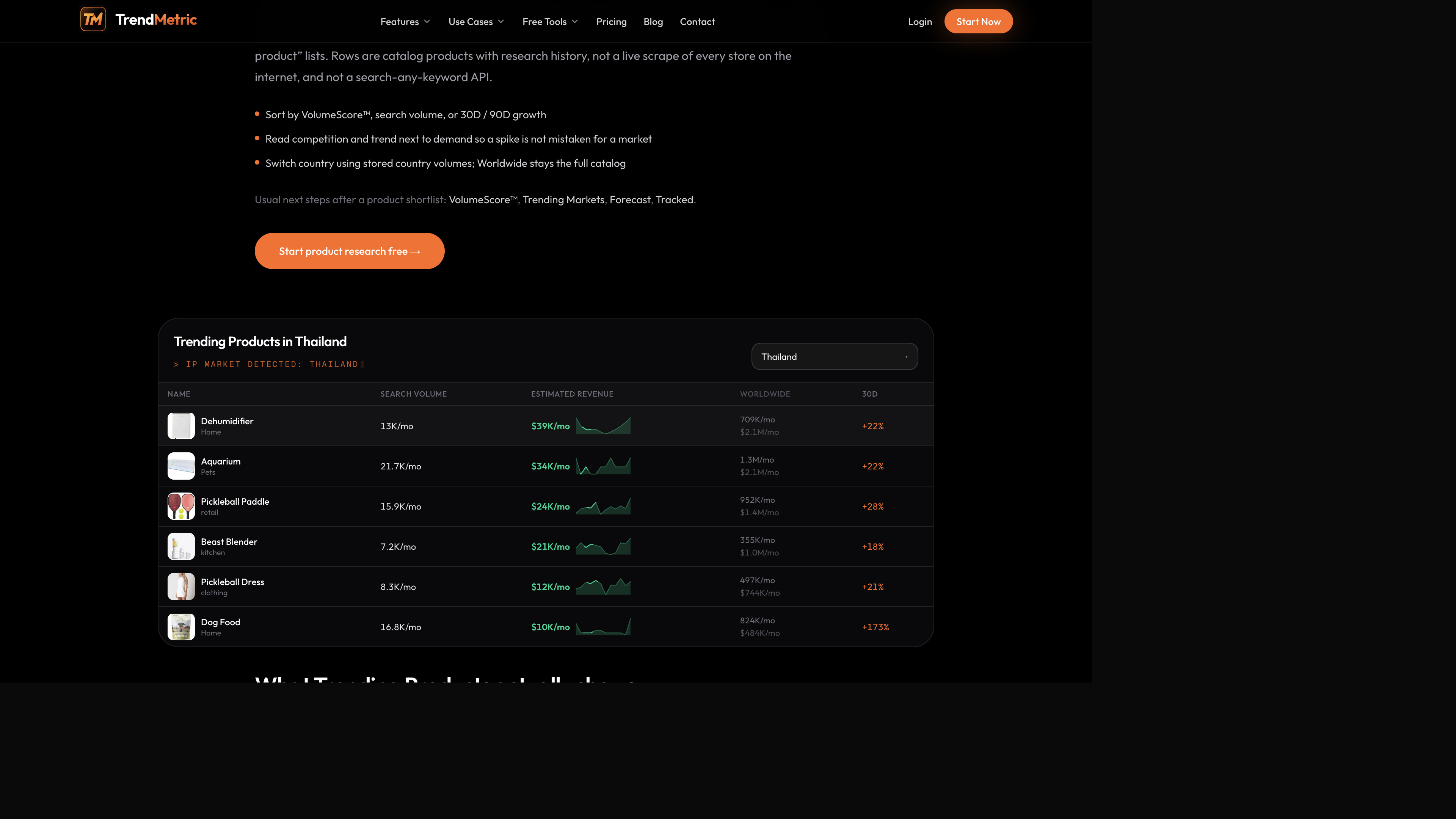
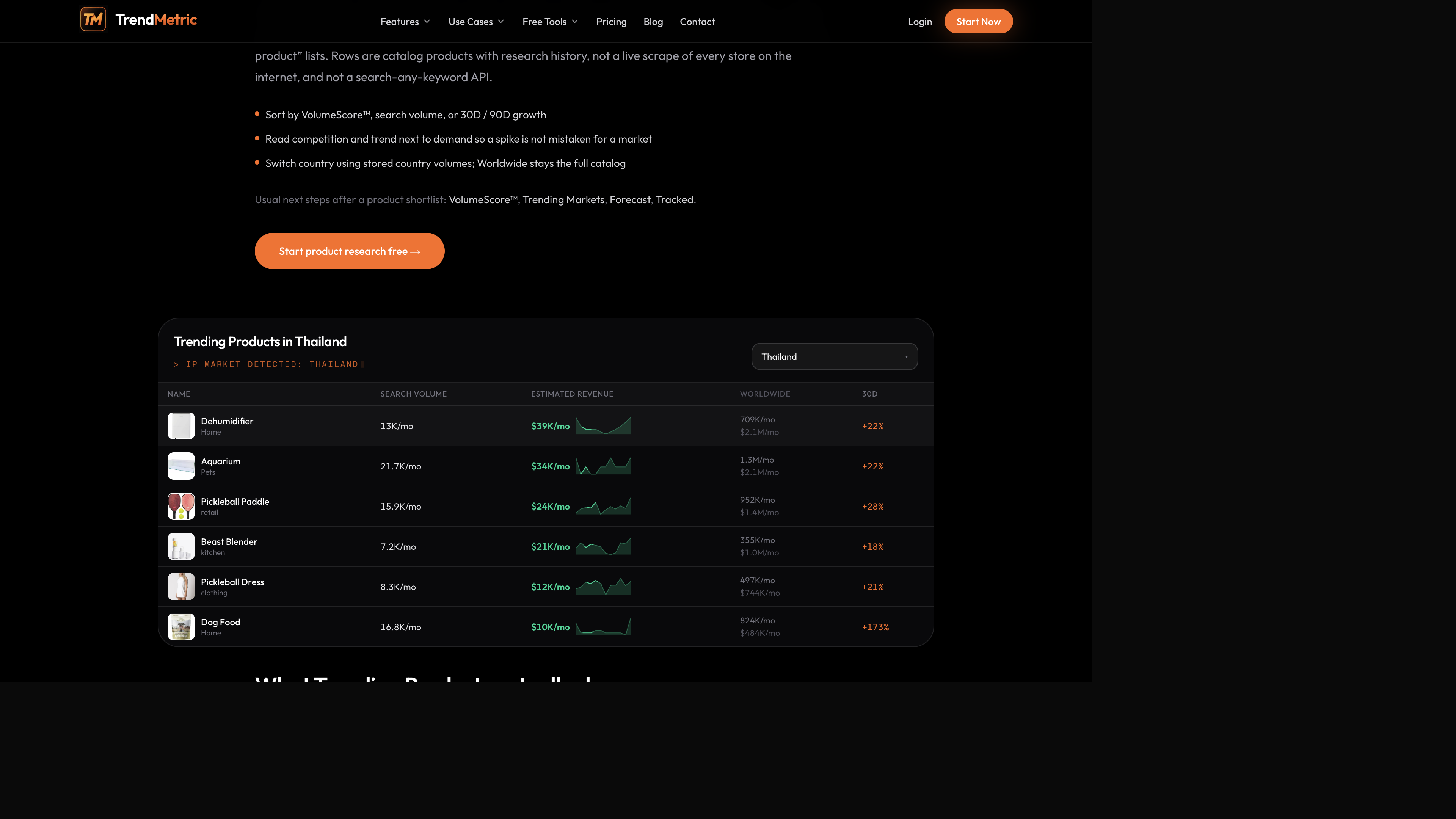
Suppose you shortlist a dehumidifier-style SKU on the Thailand product table on Tuesday. The board already shows a 30D growth column. That column is catalog history. It is not your Tracked 30D. If you Track the row on Tuesday, your personal 30D is empty until enough snapshots exist after Tuesday. Mixing those two clocks is how teams brief “it dropped 20% since we cared” when they never recorded a start date.
The same table may also show an aquarium, a pickleball paddle, or a blender. Each has its own catalog 30D. None of those percentages become your Tracked 30D until you save that row. If you save three SKUs on Tuesday and a market on Wednesday, you have four clocks, not one dashboard “this month.” Write the Tracked-since date next to each name.
The same rule applies to a market. Save the Trending Markets row the day the thesis matters. Come back when 7D and 30D can actually compute. Product researchers should Track after the shortlist, not instead of reading VolumeScore™.
What to write next to the Tracked-since date
- SKU or market name, plus the country stored on the row.
- Why you saved it — test, watch, or client brief — in one line.
- VolumeScore™ or MarketScore™ on the save day, so later movement has a research baseline.
- Whether a Forecast stance exists (Test / Watch / Caution). Track Forecast is not live; the stance is a note, not an alert.
The six-pass tracking workflow
Use this when three catalog rows survived the board. The point is an honest watch list, not a spreadsheet of everything you ever opened.
- Finish the catalog pass first: Trending Products and, if needed, Trending Markets. Track is not a substitute for reading demand and competition.
- Set the country you sell before you save. Tracked stores that geography. Switching country later on the board does not rewrite the saved country.
- Track only what you will reopen. Caps are 12 items on Starter, 50 on Pro, and 200 on Business — products and markets combined.
- Put the same thesis in a Project when notes and forecast summaries should share a country. Projects are capped at 3 / 12 / 40 on Starter / Pro / Business. Tracked is the watch list. Projects is the folder.
- Wait for snapshots. If 7D or 30D cannot be computed yet, leave the row incomplete. Do not paste the board’s older 30D into a client deck and call it Tracked.
- Opt in to emails only if you want them. Paid accounts enable Tracked emails in Settings. One delivery address per account. Every email includes unsubscribe.
Email is optional, paid, and one address
Paid accounts can opt in, in Settings, to emails when tracked demand or scores move enough to matter, plus a weekly digest. Each account has one delivery address — it replaces, and does not add to, a second inbox. You can turn this off. Unpaid access does not get this opt-in; create a paid plan first, then enable it.
Emails are a digest, not a live-refresh of the catalog. They will not tell you that Meta changed your CPA. They will not fire on forecast-band moves. Track Forecast is not shipped. If you need a weekly reminder, opt in. If you do not, leave Settings off — the watch list still works without mail.
Limits, unpaid caps, and what is not tracked
Tracked lists and Projects are capped by plan: 12 / 50 / 200 tracked items and 3 / 12 / 40 projects on Starter / Pro / Business. Unpaid accounts use the Starter caps so the watch list and folders stay usable inside the limited live preview. See which TrendMetric plan you need for what else is locked on No Plan versus Pro.
The cap is products and markets combined. Tracking twelve SKUs on Starter leaves no room for the parent market. That is why the workflow is a shortlist first: three products and one market is a Starter-shaped list. Agencies that need a row per client thesis should count before they promise a 40-SKU watch list on Starter.
What Tracked will not do (on purpose)
- It will not backfill 7D or 30D from before the save date.
- It will not track a Shopify URL. Spy on Store is Coming Soon.
- It will not track forecast moves as their own alert product.
- It will not invent a row that is not in the catalog.
That constraint is the method. You watch what you already ranked, from the day you decided it mattered. Ecommerce agencies use that start date in a retainer note. Dropshippers use it so a Tuesday decision is not rewritten as last month’s trend.
After you Track: reopen, don’t hover
Come back when snapshots exist. Re-read VolumeScore™, competition, and the market around the SKU. If you have Pro, refresh Forecast on a short horizon — the range is still not live-tracked. If the thesis died, untrack the row and free the cap.
A useful reopen takes ten minutes: the Tracked-since date, whether 7D is even available, the current score, and whether the country on the row still matches the brief. If you switched the live board to another country this morning, that does not rewrite the saved item. Agencies should not paste a Worldwide screenshot next to a Thailand Tracked row and call it one update.
How Tracked sits next to Forecast and the boards
The catalog boards answer “what looks researchable now.” Forecast answers “what does stored history imply on this horizon.” Tracked answers “what changed since I cared.” Use all three in that order when you validate before ads. Do not skip to Tracked because the list feels productive.
If you only needed a retroactive sparkline of a SKU you never saved, this feature will refuse you on purpose. Save the row today. Let the clock start.
Related articles
FAQ
- Does 30D change include history from before I tracked?
- No. 7D and 30D only count snapshots after the track date. If there is not enough history yet, TrendMetric says so instead of inventing a baseline.
- Can I track any store URL?
- No. Store tracking is not a live research surface. Spy on Store is Coming Soon. You can track catalog products and markets.
- What are the Tracked and Projects caps?
- Tracked is 12 items on Starter, 50 on Pro, and 200 on Business. Projects are 3 / 12 / 40 on those same plans. Unpaid accounts use the Starter caps.
- Will I get emails automatically?
- Only if you opt in on a paid plan in Settings. Each account has one delivery address, and every email includes unsubscribe.
- How is this different from Forecast?
- Forecast is a future demand range on a catalog subject. Tracked is a watch list whose change windows start when you save the row. Track Forecast is not live.